The Ultimate Guide: How to Redeem Fortnite Codes on Any Device (2026 Updated)
Table of Contents
- Chapter 1: Understanding Fortnite Redeem Codes
- Chapter 2: Essential Preparation Before You Redeem
- Chapter 3: How to Redeem Fortnite Codes on PC
- Chapter 4: Redeeming V-Bucks Cards
- Chapter 5: How to Redeem on Consoles
- Chapter 6: How to Redeem on Mobile
- Chapter 7: Troubleshooting Common Errors
- Chapter 8: Safety, Scams, and Best Practices
- Chapter 9: Maximizing Your Rewards
- Conclusion
Introduction
Fortnite is not just a battle royale game; it is a global cultural phenomenon that has redefined the gaming landscape. Since its explosive launch by Epic Games, it has created a vibrant digital economy centered around personalization. From the iconic default skins to collaborations with Marvel, Star Wars, and anime giants like Naruto and Dragon Ball, the desire to customize one's in-game avatar is a driving force for millions of players.
While the Fortnite Item Shop rotates daily with new cosmetics available for direct purchase using V-Bucks, there exists another, equally exciting method to acquire content: Fortnite Redeem Codes. These codes act as digital keys, unlocking everything from exclusive promotional sprays and gliders to substantial amounts of V-Bucks and rare outfits that cannot be bought directly.
For many players, especially those new to the Epic Games ecosystem, the process of redeeming these codes can be surprisingly complex. The confusion often stems from Fortnite's cross-platform nature. A player might game on a PlayStation 5, buy a gift card from a local retailer, and realize there is no obvious place on their console to enter the code. Furthermore, with the rise of third-party marketplaces like HCTOPUP, where players can purchase gift cards and codes at competitive rates, the need for a definitive, fail-safe guide has never been greater.
In this exhaustive guide, we will dismantle every aspect of how to redeem Fortnite codes. We will not just tell you "where to click"; we will explain how the Epic Games account system works, why cross-progression matters, how to handle regional restrictions, and how to troubleshoot the most obscure error messages. Whether you are a parent trying to apply a gift card for your child or a hardcore gamer looking to claim an exclusive skin, this is the only resource you will ever need.
Chapter 1:Understanding Fortnite Redeem Codes
Before diving into the technical steps, it is crucial to understand what these codes actually are. Not all codes function the same way, and distinguishing between them is the first step to successful redemption.
1.1 What Are Fortnite Redeem Codes?
A Fortnite redeem code is a unique alphanumeric string generated by Epic Games. These codes are typically 12, 16, or 20 characters long, depending on their source and purpose. When entered into the Epic Games system, the server verifies the string against a database of valid keys. If the key is active and unused, the server grants specific entitlements (licenses) to the account that redeemed it.
1.2 Types of Redeem Codes
There are three main categories of codes you will encounter, and they often require slightly different redemption flows:
- V-Bucks Cards:
- Purpose: These add the in-game currency (V-Bucks) to your balance.
- Format: These are the most common codes found in physical retail stores or digital shops like HCTOPUP.
- Special Requirement: Unlike standard item codes, V-Bucks cards often require a two-step redemption process where you must first select the platform (PC, Xbox, PS, etc.) where you want to receive the currency.
- Cosmetic Item Codes:
- Purpose: These directly unlock specific items (Skins, Back Blings, Pickaxes, Emotes).
- Source: These often come from collaborations (e.g., buying a Marvel comic book that includes a code for a Spider-Man skin), hardware bundles (buying a new controller), or special events.
- Mechanism: These are straightforward and apply to the account universally.
- Subscription/Bundle Codes:
- Purpose: Codes that unlock bundles like the "Anime Legends Pack" or subscriptions like "Fortnite Crew" (though Crew is usually a direct billing subscription, prepaid cards exist).
1.3 Why Use Redeem Codes?
Why go through the trouble of buying a code instead of just using a credit card in the game?
- Security: Using a prepaid card from a site like HCTOPUP means you don't have to link your credit card details to your child's gaming account, preventing accidental overspending.
- Gifting: Codes are the primary way to gift items to friends, as you cannot transfer V-Bucks directly between accounts.
- Exclusivity: Many promotional items (like the "Minty Pickaxe" of the past) were only available via codes and never appeared in the Fortnite Item Shop.
Chapter 2:Essential Preparation Before You Redeem
Most redemption errors occur because players skip the preparation phase. To ensure the "Success" message appears on your first try, you must verify your account status.
2.1 The "Headless" Account Issue (Console Players Beware)
This is the single most important concept for console players. When you first play Fortnite on a PlayStation, Xbox, or Nintendo Switch, the game might ask if you want to link an Epic Games account. If you select "Skip" or "Later," the game creates a "Nameless" or "Ghost" account linked strictly to your console ID.
- The Problem: This ghost account has no email or password. If you go to the Epic Games website and log in with a new email, you are creating a completely separate account. If you redeem a code there, the items will not show up on your console.
- The Solution: You must "upgrade" your console account to a full Epic Games account before redeeming anything.
- Go to the Epic Games website.
- Choose "Sign In" but do not enter an email. Instead, click the icon for your console (PlayStation, Xbox, Switch logo).
- Log in with your console credentials.
- Epic will realize this account has no email and ask you to provide one. Once done, your console account is a fully functional Epic account.
2.2 Enabling Two-Factor Authentication (2FA)
While not strictly required for all code redemptions, enabling 2FA is mandatory for gifting and competitive play. It is highly recommended to enable this before handling valuable V-Bucks codes to prevent theft.
- Go to Account Settings > Password & Security.
- Enable Email Authentication or use an Authenticator App.
2.3 Checking Region Locks
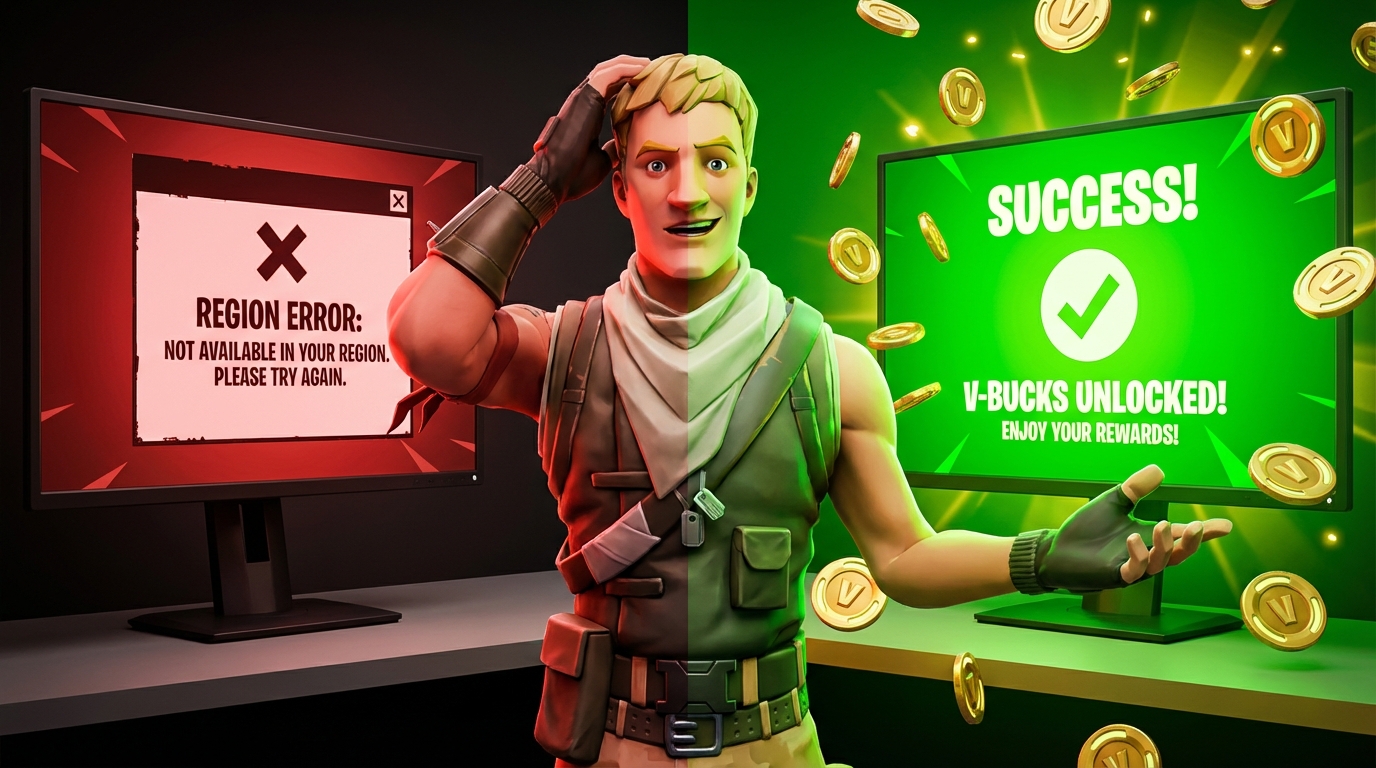
Fortnite V-Bucks cards are arguably the only items that are strictly region-locked.
- If your Epic Games account is set to "France," you generally cannot redeem a V-Bucks card purchased in "USA."
- HCTOPUP clearly labels the region of their cards. Always match the card region to your account region. Attempting to bypass this with a VPN is risky and can lead to account bans.
Chapter 3:How to Redeem Fortnite Codes on PC (The Universal Method)
The PC method is the "Gold Standard." Even if you play on Xbox or Mobile, using a PC (or a mobile web browser acting as a PC) is the most reliable way to redeem codes.
Step-by-Step Guide:
- Navigate to the Official Portal:
Open your web browser (Chrome, Firefox, Edge) and go to www.epicgames.com/fortnite. Avoid clicking on suspicious ads; ensure the URL is the official Epic Games domain.
- Log In Correctly:
Click "Sign In" in the top right corner.
- Crucial Step: If you play on PC, log in with your email. If you play on Console, click the Console Logo to log in. This ensures you are redeeming the code to the correct profile.
- Access the Redemption Page:
Once logged in, hover over your username in the top right corner. A dropdown menu will appear. Click on "Redeem Code".
- Alternatively, visit www.epicgames.com/fortnite/en-US/redeem directly.
- Enter the Code:
You will see a text box labeled "Enter Access Code."
- Type your code exactly as it appears.
- Hyphens are usually not necessary; the system auto-formats, but it is safer to type them if you are unsure.
- Codes are case-insensitive, but uppercase is standard.
- The Verification Prompt:
Click "Redeem." The system will pause and show you a preview of the item.
- Example: "You are about to unlock: 1000 V-Bucks."
- STOP and READ: Verify that the account username displayed matches your main account. If it shows a Level 1 account you don't recognize, you are logged into the wrong email.
- Confirm:
Click "Activate." You should see a "Success! The code has been redeemed" message.
- Launch the Game:
Open Fortnite on your PC. Upon entering the lobby, a gift box animation will play, presenting your new items.
Chapter 4:Redeeming V-Bucks Cards (The Special Process)
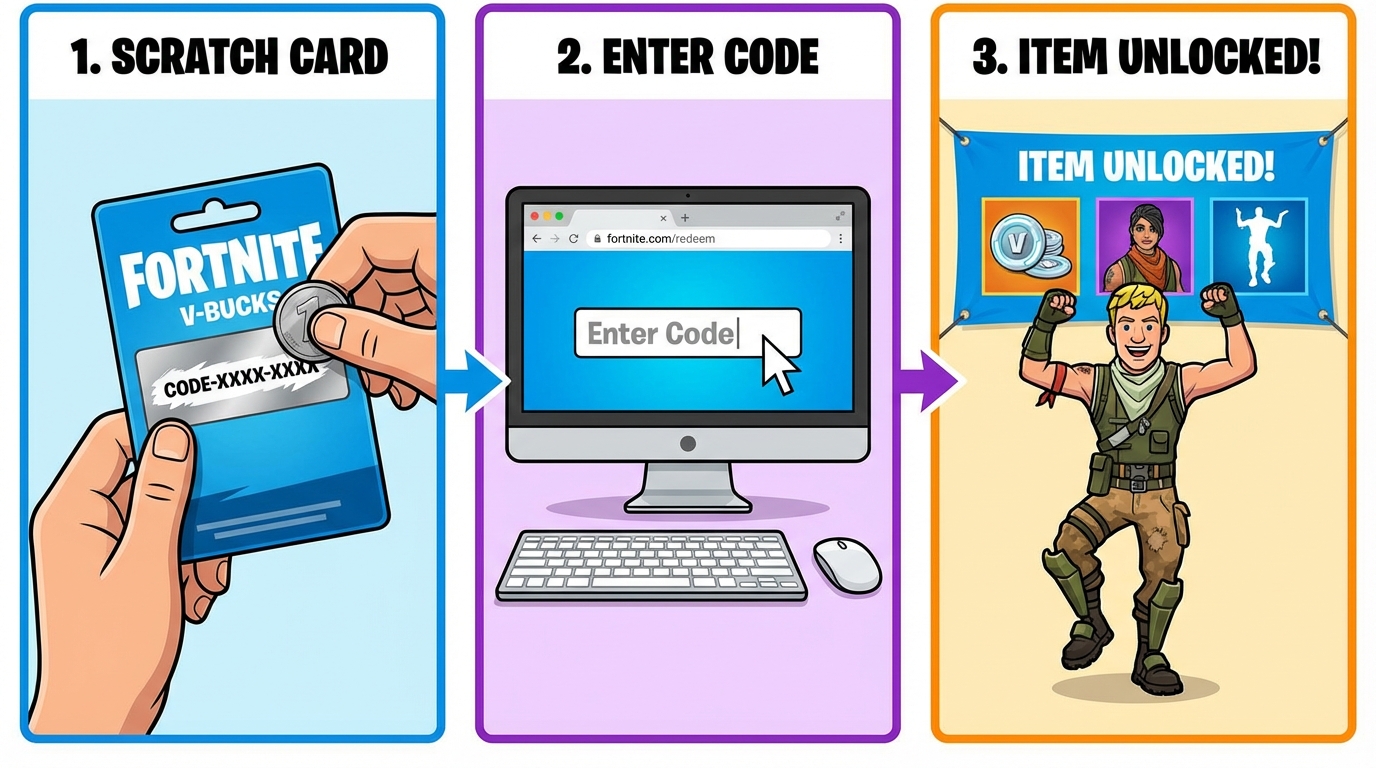
As mentioned, V-Bucks cards function differently. If you try to enter a V-Bucks PIN in the standard "Redeem Code" box mentioned in Chapter 3, it might fail.
The Dedicated V-Bucks Portal:
- Go to www.fortnite.com/vbuckscard.
- Click "Get Started".
- Enter the PIN: Scratch off the back of your physical card or copy the digital code from your HCTOPUP email.
- Select Platform:
This is the critical difference. The system will ask: "Where do you play Fortnite?"
- PC/Mac: The V-Bucks are added immediately.
- PlayStation/Xbox/Switch: When you select a console, the system might generate a Secondary Code.
- Scenario: You enter a 16-digit V-Bucks code. You select "PlayStation." The website then generates a 12-digit PlayStation Store code.
- You must then take this new 12-digit code and enter it into your PlayStation console store. (See Chapter 5).
- Note: Recent updates have streamlined this for some platforms, allowing direct deposit, but always be prepared for the Secondary Code step.
Chapter 5:How to Redeem Fortnite Codes on Consoles
Console players often ask, "Can I just type this into my controller?" The answer depends on the type of code.
5.1 PlayStation 4 & PlayStation 5
Method A: The PlayStation Store (For V-Bucks/Cash Codes)
If you have a PlayStation Store Gift Card (Cash) or a secondary V-Bucks code generated from the Epic website:
- Go to the main dashboard of your PS4/PS5.
- Navigate to the PlayStation Store icon.
- Scroll to the top menu (PS4) or the three-dot "More" menu (PS5).
- Select "Redeem Code".
- Enter the 12-digit code.
- The funds/items will be added to your PlayStation account. Next time you launch Fortnite, the game syncs with PSN and grants the items.
Method B: In-Game Browser (For Item Codes)
PlayStation does not have a native "Redeem Fortnite Code" menu inside the game settings anymore. You must use the web browser on your phone or PC (refer to Chapter 3) and ensure your PSN account is linked.
5.2 Xbox One & Xbox Series X/S
Method A: Microsoft Store
- Press the Xbox button on your controller to open the guide.
- Select Store.
- Press the View button (the small button with two squares) to open the side menu.
- Select Redeem.
- Enter the 25-character code.
- Crucial: If this is a V-Bucks code, ensure the Microsoft account you are logged into is the same one linked to your Epic Games.
Method B: Cloud Redemption
You can also go to redeem.microsoft.com on your phone, log in with your Xbox credentials, and paste the code there. This is often faster than typing with a controller.
5.3 Nintendo Switch
Nintendo is notoriously strict with its ecosystem.
- Select Nintendo eShop on the HOME Menu.
- Select the account you use to play Fortnite.
- Select Enter Code on the left side of the screen.
- Enter the 16-character download code.
- Select "OK" to confirm.
Important Note for Switch Users: V-Bucks purchased or redeemed on Switch are often locked to the Switch. This is known as the "Shared Wallet" limitation. If you redeem 1000 V-Bucks on Switch, you might not see them when you log in on PC. However, cosmetics bought with those V-Bucks will transfer.
Chapter 6: How to Redeem Fortnite Codes on Mobile (iOS/Android)
Mobile gaming has changed significantly for Fortnite. With the game being removed from the native Apple App Store and Google Play Store, redemption flows have shifted.
6.1 Android Users
Since Android users usually download Fortnite via the Epic Games App or Samsung Galaxy Store:
- Launch the Fortnite App.
- Tap the Avatar icon in the top right.
- Sometimes there is a "Redeem" option directly in the menu, but it often redirects to the browser.
- It is recommended to simply open Chrome on your Android phone, go to fortnite.com/redeem, and paste the code.
6.2 iOS (iPhone/iPad) Users
Since you are likely playing via Xbox Cloud Gaming, GeForce Now, or Amazon Luna:
- You cannot redeem inside the cloud stream interface easily.
- Close the stream.
- Open Safari.
- Go to the Epic Games redemption site.
- Redeem the code.
- Relaunch your cloud gaming session. The items will be waiting for you.
Chapter 7: Troubleshooting Common Errors
Even with a perfect guide, things go wrong. Here is a comprehensive database of errors and their fixes.
Error 1: "Code Invalid or Expired"
- Cause: The code was typed incorrectly or the promotion has ended.
- Fix:
- Check for look-alike characters: 0 (Zero) vs O (Letter O), 1 (One) vs I (Letter I), 5 (Five) vs S.
- If you bought the code from a third party years ago, it might be expired. Most V-Bucks cards do not expire, but promo skins (like the Intel or Samsung skins) do.
Error 2: "Code Already Redeemed"
- Cause: The code has been used.
- Fix:
- Did you share the code with a friend "just to check it"? They might have snapped it up.
- Did you click "Redeem" and the page crashed? Check your in-game locker. It might have gone through despite the crash.
- Contact the seller (e.g., HCTOPUP support) if you purchased a fresh code that says redeemed.
Error 3: "Region Mismatch"
- Cause: Buying a cheaper code from Turkey or Argentina while your account is in the UK/USA.
- Fix: You generally cannot fix this without changing your account region, which requires contacting Epic Support and proving residency (uploading ID). It is better to trade the code with a friend in that region or buy the correct region code.
Error 4: "Secondary Code Not Working"
- Cause: You got a 12-digit PSN code from the Epic site, but PSN rejects it.
- Fix: Ensure your PSN account region matches the currency. A US V-Bucks card generates a US PSN code. If your PSN account is German, the code will fail.
Chapter 8: Safety, Scams, and Best Practices
The demand for free skins makes Fortnite players a prime target for scams.
8.1 The "Free Generator" Myth
There is no such thing as a "V-Bucks Generator." Any website asking for your password to "inject" skins is a phishing scam.
- Rule: Never give your password to redeem a code. Real redemption only requires the public code, never your login credentials.
8.2 Buying from Third-Party Marketplaces
Sites like HCTOPUP are marketplaces. To stay safe:
- Check Reviews: Ensure the seller has a high rating.
- Instant Delivery: Look for "Auto-delivery" so you don't have to wait for a human to email you.
- Screenshot Everything: If a code fails, take a screenshot of the error message immediately to support your refund claim.
8.3 Buying/Selling Accounts
Redeeming a code on a bought account is risky. Epic Games bans accounts that are sold/traded. Stick to redeeming codes on your own personal account created by you.
Chapter 9: Maximizing Your Rewards
Once you have mastered how to redeem Fortnite codes, you can strategize.
- Wait for Bonuses: Occasionally, retailers offer a "Bonus V-Bucks" promotion (e.g., buy 1000, get 200 extra). Hold your cash until these events.
- Crew Pack Stacking: If you redeem a code for the "Fortnite Crew" but you already own the Battle Pass, the system typically grants you a one-time return of 950 V-Bucks.
- Save for Battle Pass: The best value for any redeemed V-Bucks is always the Battle Pass, which costs 950 V-Bucks but rewards 1500+ V-Bucks if you complete it.
Conclusion
Navigating the ecosystem of how to redeem Fortnite codes on any device can initially feel like navigating a maze, especially with the added layers of console accounts and region locks. However, the core principle is centralized: The Epic Games website is the hub.
By ensuring your account is properly linked, verifying the region of your purchase, and using trusted sources like HCTOPUP, you can seamlessly enhance your Fortnite experience. Whether you are after the latest Marvel skin or simply stacking V-Bucks for the next season's Battle Pass, following this guide ensures that your digital goods arrive safely in your locker.
Don't let a confusing interface stop you from claiming what's yours. Bookmark this guide, double-check your characters, and enjoy your victory royale in style.