Cloud Config: Playing AAA Games on Mobile via XGPU and Gift Cards
The year is 2026. You are sitting in a terminal at Dubai International Airport, or perhaps on a train in London. You don't have a console. You don't have a 5kg gaming laptop. But you have an iPad, and you are currently exploring the neon-soaked streets of Night City or fighting the Covenant in Halo Infinite.
This isn't a tech demo. It’s Xbox Cloud Gaming (xCloud), and for the hardcore gamer on the move, it is the ultimate "Cloud Config."
As a veteran gamer, I know what you're thinking: "The latency will kill it." or "My region isn't supported." Today, I’m going to show you how to solve the technical hurdles, optimize your mobile rig, and use HC TOPUP Gift Cards to bypass payment blocks and unlock the most powerful portable library on earth.
1. The XGPU Backbone: Why Ultimate is Non-Negotiable
First things first: You cannot play on the cloud with standard Game Pass. You need Xbox Game Pass Ultimate (XGPU).
XGPU is the only tier that includes "Cloud Gaming." It turns Microsoft’s multi-billion dollar Azure servers into your personal GPU. Instead of your phone processing the game, a server blade equivalent to an Xbox Series X does the heavy lifting and streams the video to you.
The Funding Strategy:
Don't subscribe via the App Store or Google Play. Apple and Google take a 30% cut, and that cost is often passed to you.
-
The Pro Move: Buy a 12-Month Game Pass Core or Xbox Gift Card from HC TOPUP.
-
The Logic: Use the Conversion Trick to get Ultimate for significantly cheaper. Once your account has XGPU balance, the "Cloud" tab in your Xbox app magically unlocks.
2. Hardware: Beyond the Touchscreen
If you are playing a competitive shooter like Call of Duty or a precision racer like Forza using touch controls, you are doing it wrong. To make your iPad a true "Xbox," you need a physical bridge.
The Controller Hierarchy:
-
The Xbox Wireless Controller (Bluetooth): The gold standard. Works flawlessly with iOS and Android.
-
Backbone One / Razer Kishi: These "Wrap-around" controllers turn your phone into a Steam Deck-style handheld. They offer the lowest latency because they connect directly to the USB-C or Lightning port.
The Clip: A $10 plastic clip that attaches your phone to your standard controller.
.png)
3. The Tech Config: Killing Latency
Latency (input lag) is the final boss of cloud gaming. If you press "Jump" and your character jumps half a second later, the game is unplayable.
-
The 5GHz Rule: Never, ever play cloud games on 2.4GHz Wi-Fi. It is too crowded and slow. Your router must be set to 5GHz, and you should be close to the source.
-
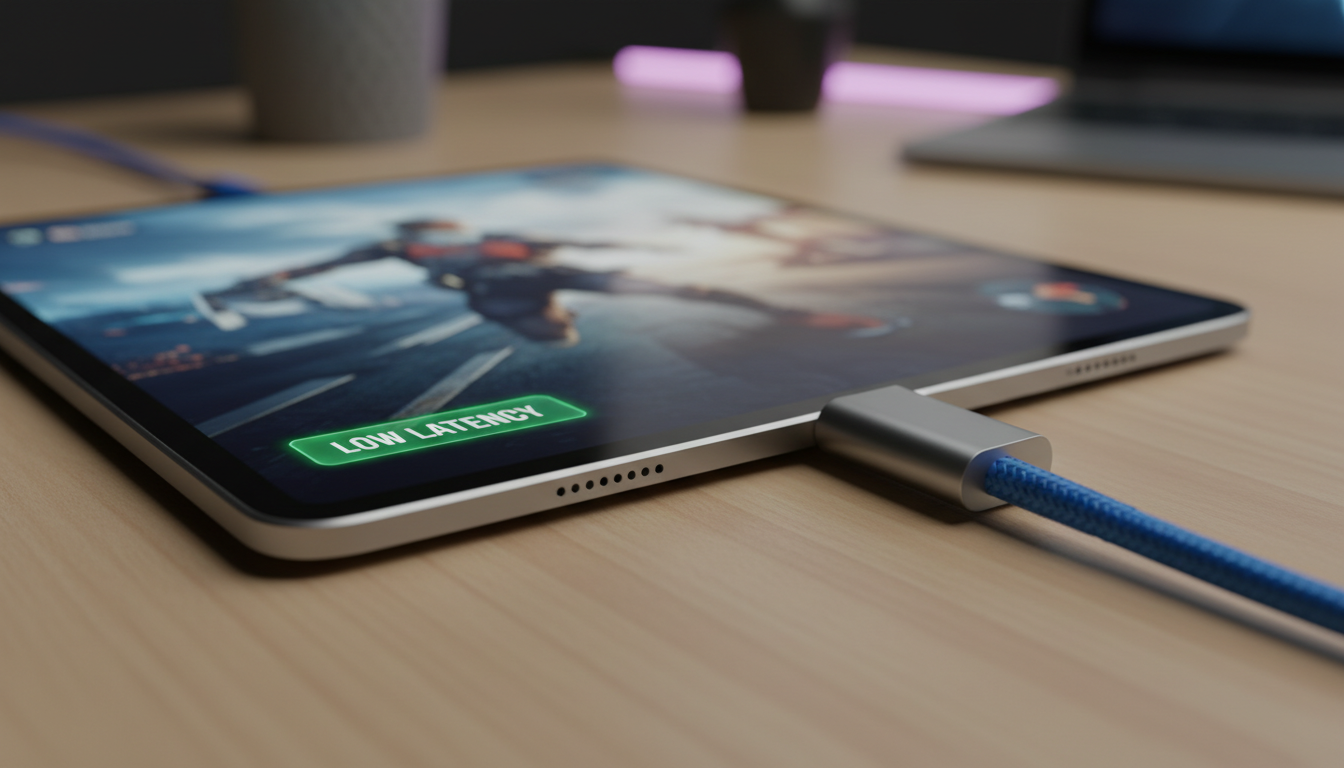
The Wired Secret: If you are on an iPad Pro with USB-C, you can actually use a USB-C to Ethernet adapter. Playing cloud games on a hardwired 100Mbps+ connection feels indistinguishable from local play.
-
Browser vs. App: On iOS, you have to use Safari to "Add to Home Screen" (xbox.com/play). On Android, use the native Xbox Game Pass app for better optimization.
4. GEO-Bypassing: Playing in Unsupported Regions
If you are in a region where xCloud isn't "officially" live (like some parts of the Middle East or SE Asia), the "Cloud" button might be missing.
The Workaround:
-
Fund your US Account with Gift Cards from HC TOPUP.
-
Use a high-speed VPN set to a "Supported" country (like USA or UK) just to launch the stream.
-
Once the game starts loading, disconnect the VPN. The stream will usually continue on your local, faster connection.
5. Summary: Your Mobile AAA Checklist
-
Sub: Xbox Game Pass Ultimate (Funded via HC TOPUP).
-
Rig: iPad/iPhone/Android + 5GHz Wi-Fi.
-
Input: Physical Controller (Avoid touch).
[Get Your XGPU Funding Cards Here]
👉 Return to Base: The Ultimate Global Gamer's Guide